SMS Organizer is shutting down: what to use instead
Microsoft is retiring SMS Organizer. What it did that other SMS apps don't, the free options, and how to keep your inbox sorted without uploading it.
For years, Microsoft’s SMS Organizer was the app that made an Indian SMS inbox bearable. Bank alerts went in one place, OTPs in another, promotions out of sight, and bill reminders showed up on their own. In 2026 Microsoft started telling users that the app is being retired. If you rely on it, now is a good time to choose what comes next, before it stops working.
What SMS Organizer did that most SMS apps don’t
Most messaging apps show one long list of conversations. SMS Organizer read your messages and did something with them:
- Sorted the inbox into personal, transactions and promotions.
- Pulled out OTPs so you didn’t have to open the message.
- Turned bill SMS into reminders, with the due date and amount.
- Tracked trains, flights and parcels from booking and delivery messages.
That’s the part that’s hard to replace. A plain SMS app will send and receive just fine. It won’t tell you that your electricity bill is due on Thursday.
The free options
1. Your phone’s built-in Messages app. It costs nothing and it’s already there. You get spam filtering and a clean, reliable inbox. You don’t get bill reminders, spending totals or a separate place for transactions.
2. An open-source SMS app. Apps such as Fossify Messages are free, have no ads and keep things simple. They’re a good fit if what you want is a private, tidy messaging app. They don’t try to sort your messages or read your bills.
3. Do it by hand. Pin the people you talk to, archive bank alerts once you’ve seen them, and keep bill due dates in your calendar. It works, but it’s the chore SMS Organizer used to do for you.
What to check before you pick an SMS organizer
Any app that sorts your SMS has to read all of it: OTPs, bank balances, card numbers, delivery addresses. So before you install one, look at two things:
- Can it go online? On Android, open Settings → Apps → [the app] → Permissions. If an app that reads every message can also reach the internet, you’re trusting it not to send anything.
- Does it handle Indian messages? Bank, UPI and card SMS, bill alerts and DLT sender IDs look nothing like messages elsewhere, and a sorter built for other countries can miss many of them.
The one I built
I built Inboxwise for exactly this gap. It’s a full SMS app for Android (send and receive, dual SIM, quick reply, OTP copy from the notification) that sorts the inbox the way SMS Organizer did. Transactions, bills, deliveries, travel, OTPs and offers each go in their own place, promotions are tucked away, and people stay on top.
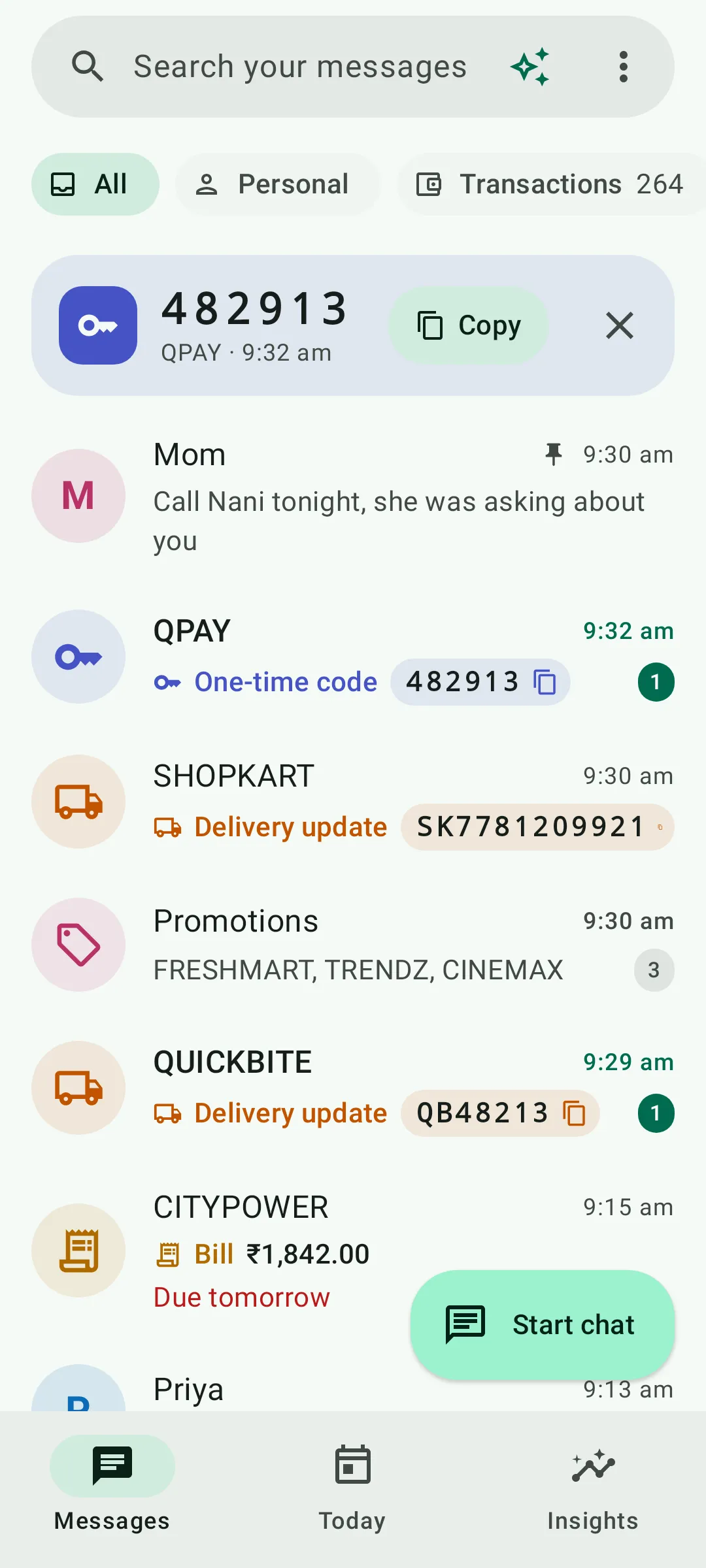 The Inboxwise inbox: people on top, deliveries and bills labelled, promotions folded into one row.
It also goes a step further than sorting:
- Spending from your SMS. Bank, UPI and card messages become a monthly dashboard with categories, budgets and subscriptions.
- Bills on time. Due dates from bill SMS, with a reminder before they’re due.
- Scam SMS, explained. Look-alike links, OTP requests, urgent threats and prize scams are flagged, and it shows you why.
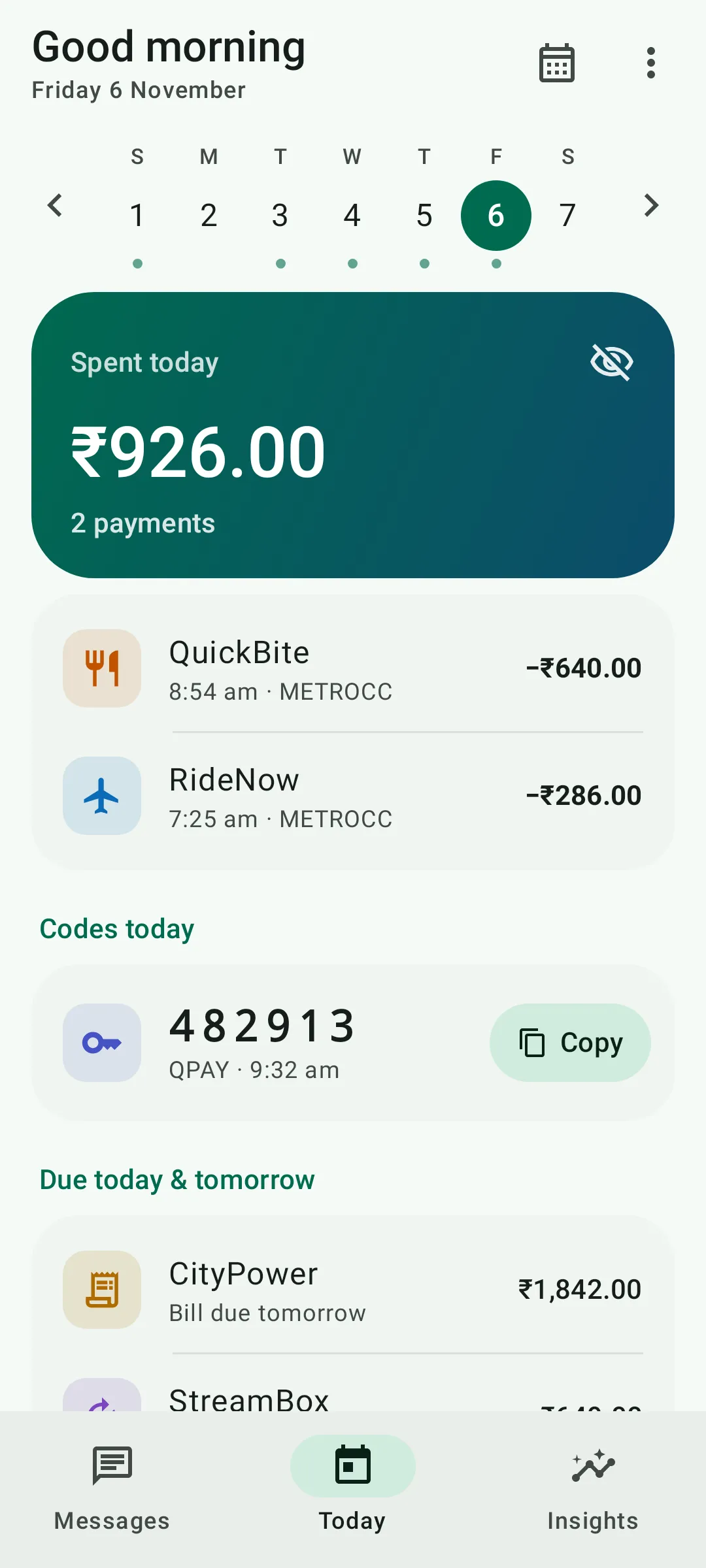 The Today screen: what you spent, your latest codes and what’s due.
Inboxwise has no internet permission at all, so your messages can’t leave your phone. You don’t have to take my word for it: check Settings → Apps → Inboxwise → Permissions. It has no ads, no account and no analytics. You can try every feature free for 3 days. After that, Pro is a one-time purchase, with no subscription.
Switching over
- Install the new app first, while SMS Organizer still works, and check that your old messages show up. Your SMS are stored on the phone, not inside SMS Organizer, so a new SMS app reads the same messages.
- Make it your default SMS app when Android asks, so new messages land there.
- Keep SMS Organizer until you’re happy, then uninstall it.
Whatever you move to, pick something that will still be around, and that keeps your messages on your phone.
