Adaptive Dock guide: profiles, ranking and one-click restore
A tour of Adaptive Dock for Mac: how it ranks your apps, setting up profiles, switching from the menu bar, automatic updates and getting your old Dock back.
Adaptive Dock keeps your Mac’s Dock matched to the apps you actually use. Here’s how it decides what goes where, and how to set it up the way you like.
How it ranks your apps
Adaptive Dock looks at how much you used each app over the last 7 or 30 days and moves the busiest ones to the front of the Dock. It works from day one, because it starts from macOS’s own record of which days you opened each app. After that it records which app is in front and for how long, only on your Mac. It never records window titles, keystrokes or screenshots.
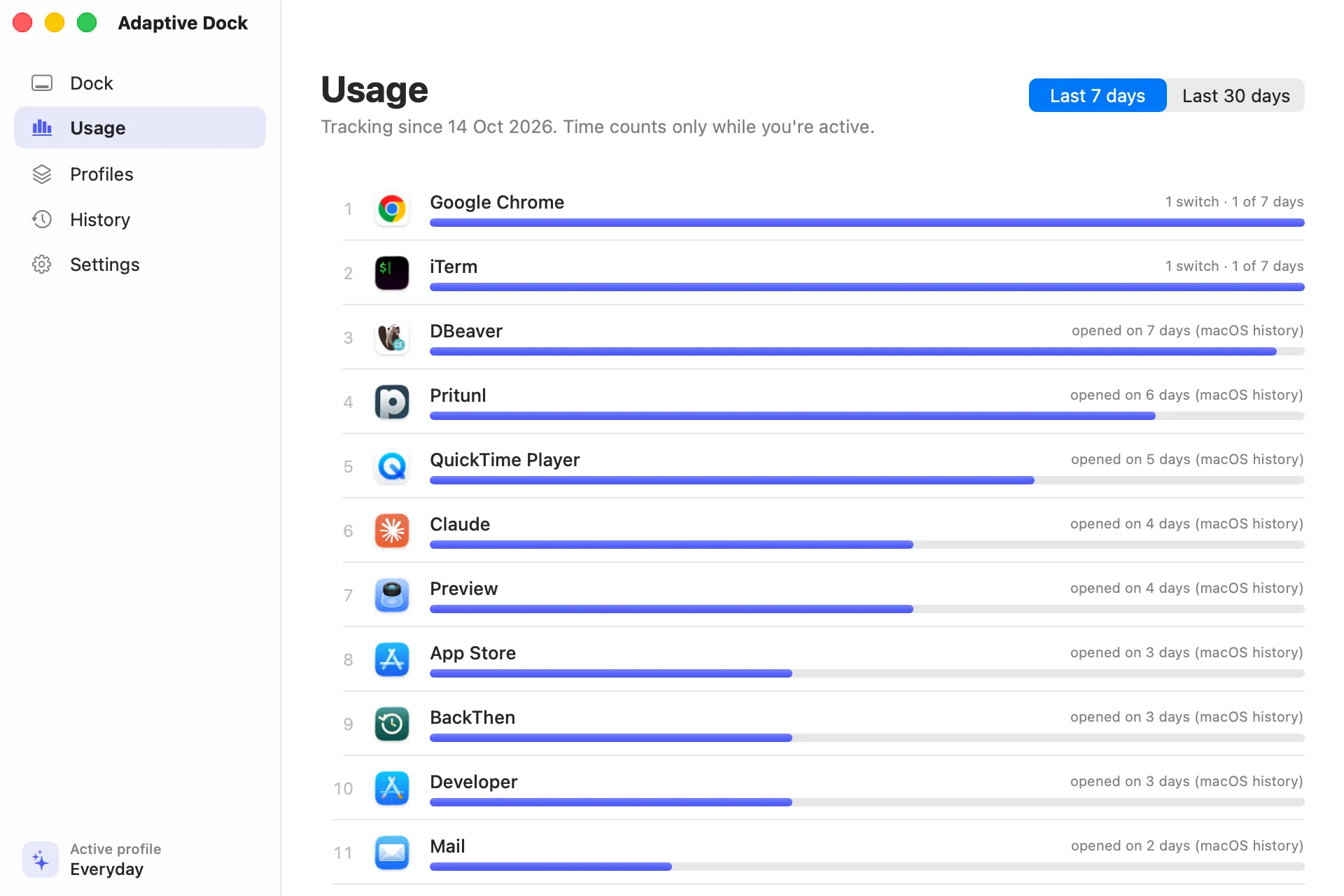 Your apps, ranked by how much you used them in the last 7 days.
Profiles for every mode
The apps you need on a workday morning aren’t the ones you need on a Sunday. Adaptive Dock comes with five profiles, pre-filled from the apps on your Mac: Everyday, Work, Coding, Meeting and Personal.
For each profile you choose:
- Always in the Dock: apps that stay no matter what.
- Never in the Dock: apps you don’t want there even if you use them a lot.
- How many most-used slots to fill with your busiest apps.
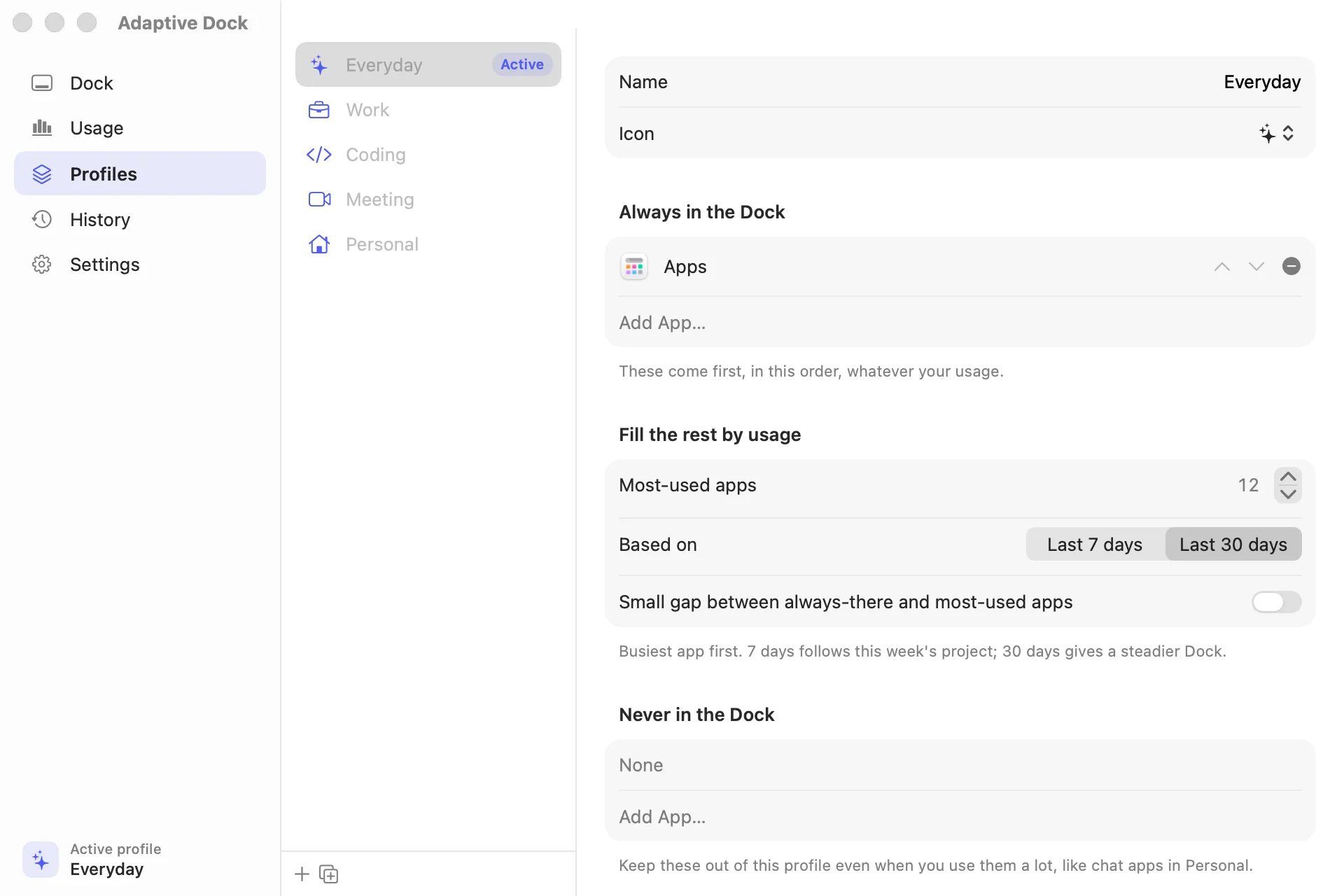 A profile: always in the Dock, never in the Dock, and how many most-used slots.
Switch from the menu bar
Adaptive Dock lives in the menu bar. Pick a profile there and the Dock changes to match. The Dock blinks once while it reloads; your open apps and windows aren’t affected.
Automatic updates, politely
In Settings, choose how often it updates: off, hourly, every 4 hours or daily. It waits until you stop typing or clicking for a moment, so the Dock never moves under your cursor, and it pauses if you rearrange the Dock yourself.
Only your apps are touched
Folders, Downloads and your Dock settings are left alone. Apps already in your Dock keep their exact tiles.
One-click restore
Your Dock is saved before every change. The History screen lists saved Docks you can restore, and the very first one, “Before Adaptive Dock”, is kept forever. Restore Previous Dock is always one click away in the menu bar.
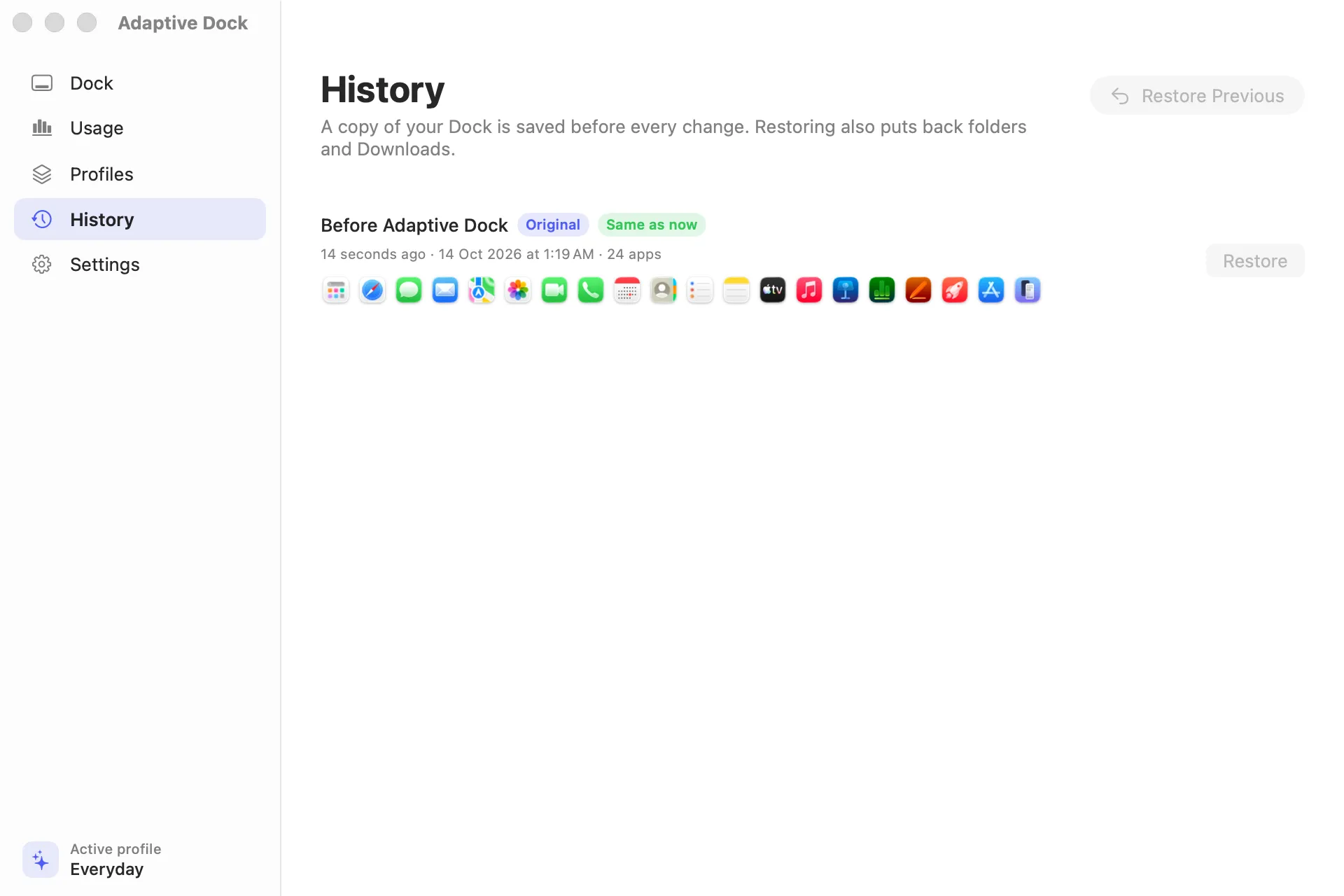 History: every saved Dock, starting with the one from before Adaptive Dock.
See it before you buy
There’s no time-limited trial, but you can download Adaptive Dock free and it shows your current Dock next to the one it suggests from your own usage. A licence, a one-time purchase for one Mac, unlocks applying it. It needs a Mac with Apple silicon (M1 or newer) running macOS 14 or later.
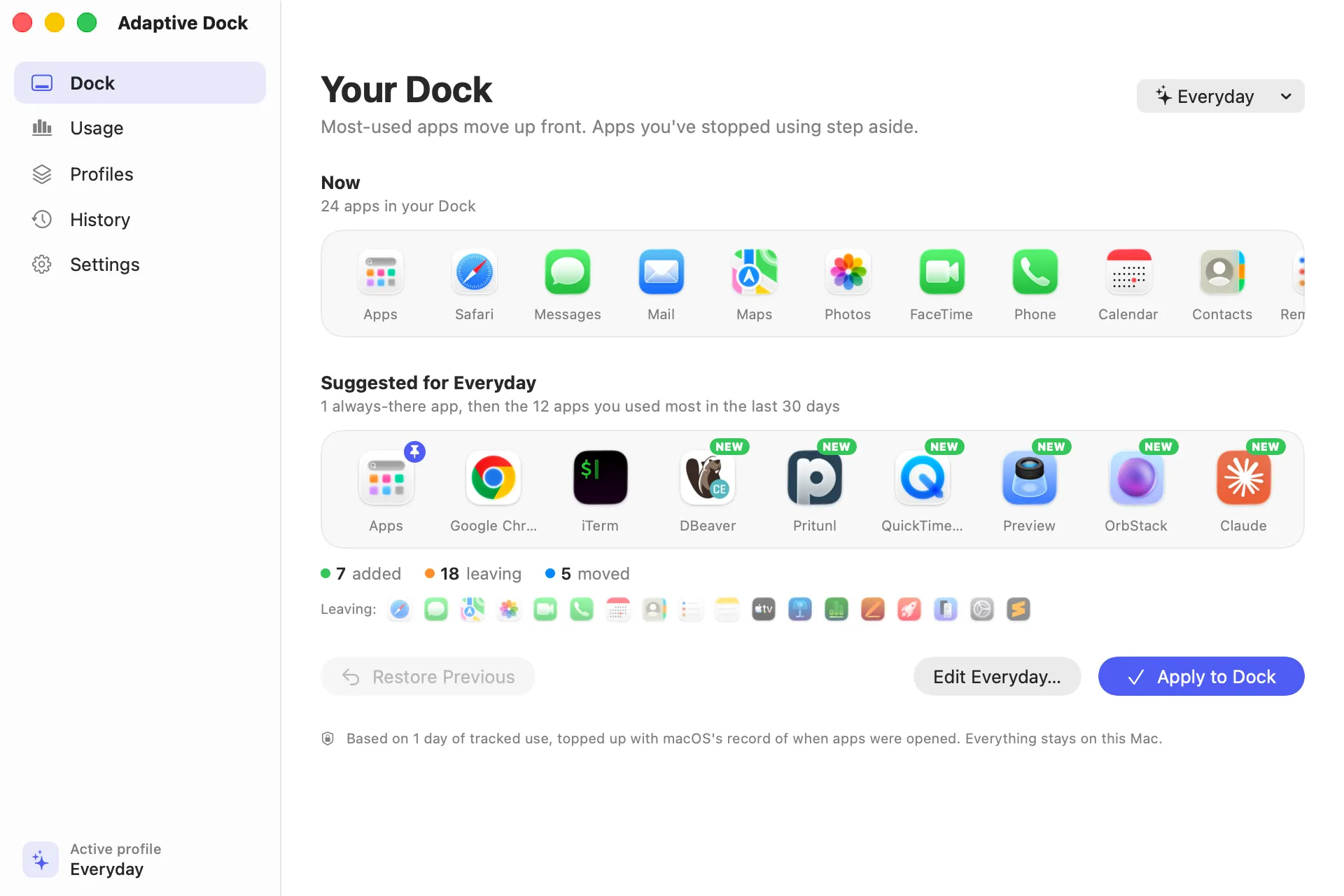 Your Dock now, next to the one it suggests from your usage.
Privacy
The only time Adaptive Dock goes online is to check your licence key, sending just the key and your Mac’s name. No account, no analytics.
Setup steps and help are on the Adaptive Dock page.


