BackThen guide: timelines, going back and putting back one file
A tour of BackThen for Mac: how moments are saved, scrubbing a folder's timeline, going back and undoing it, file versions, named moments and disk space.
BackThen gives any folder on your Mac a timeline, so a bad save or a deleted file is never the end of the story. It’s version history for people who don’t use git. Here’s how it works.
Protecting a folder
Click + and pick a folder, such as Documents or a project. Then choose how it saves:
- Automatically: BackThen saves a moment a few seconds after you stop editing.
- Only when you ask: you decide when a moment is saved.
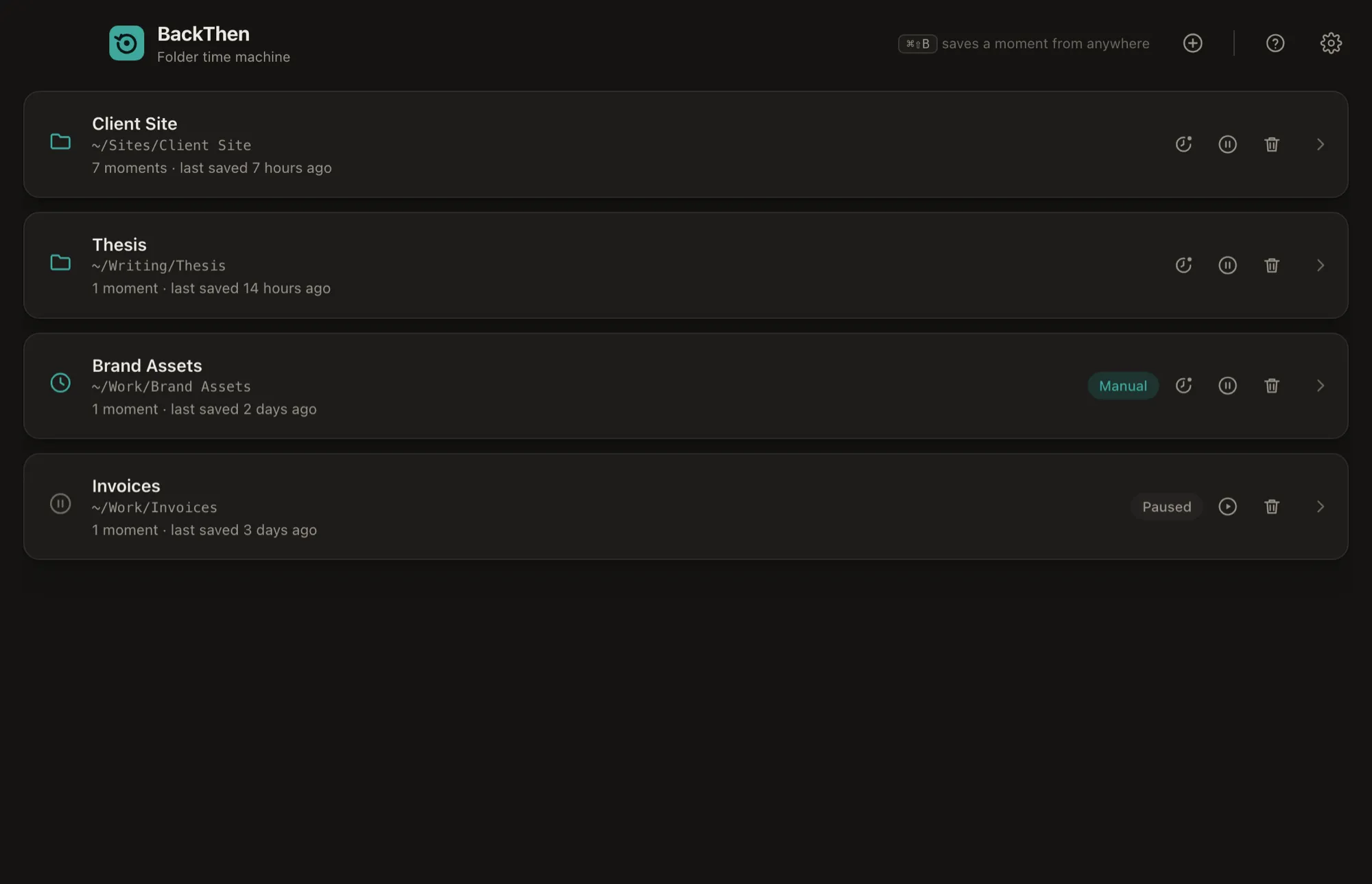 Protected folders, each saving automatically, manually or paused.
It takes a first look at the folder, and from then on every change is on the timeline. BackThen only reads your folders; the only times it changes one are when you go back or put back a file.
Scrub the timeline
Moments are grouped by day, with what changed in each. Click a moment to see what going back would do: which files would come back, which would change and which would go away.
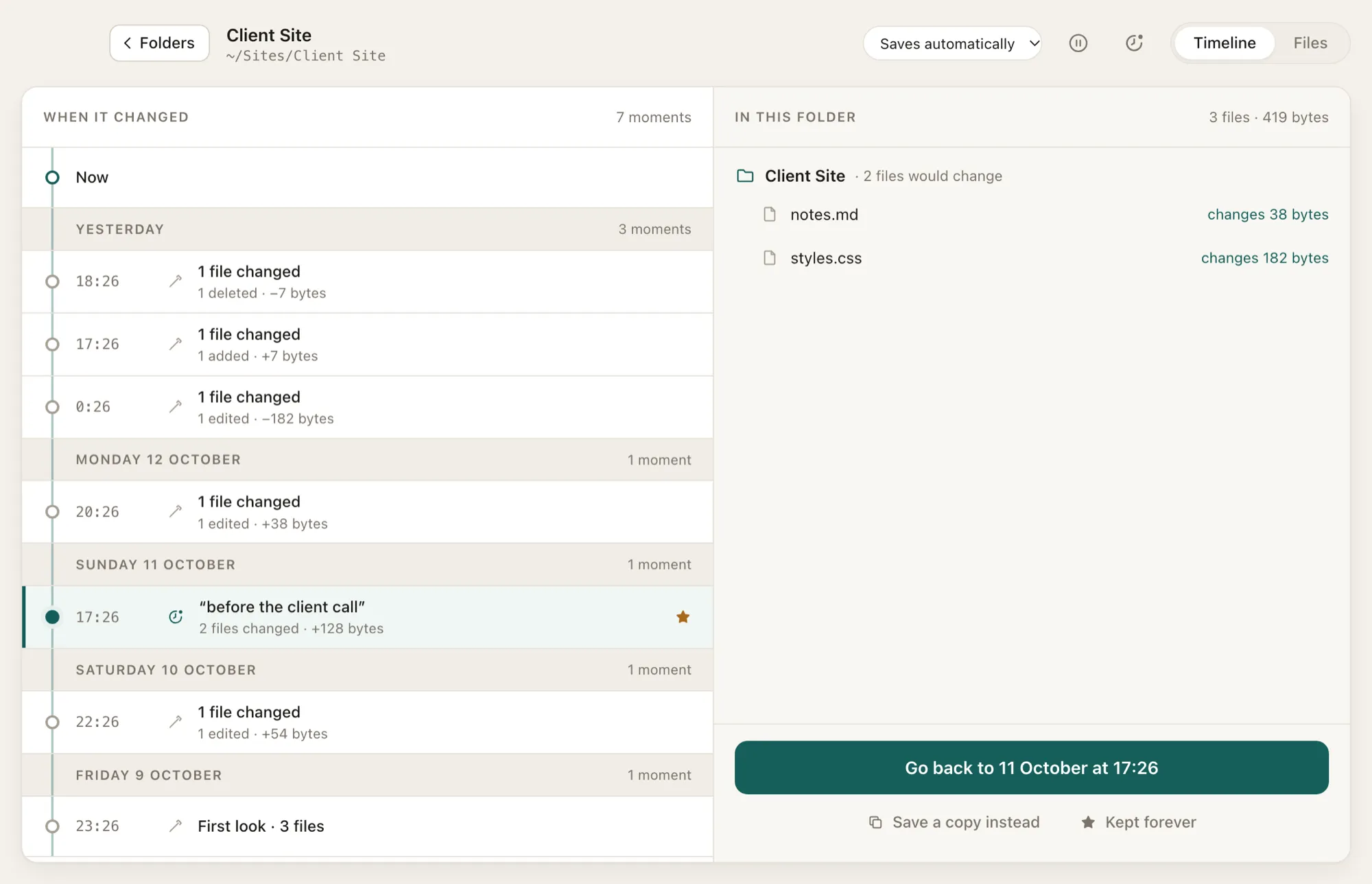 A folder’s timeline, and what going back to a moment would change.
Go back, then undo
Take the whole folder back to any moment. Before it does, BackThen saves a “Before going back” moment, so you can click Undo in the message that appears, or pick that moment on the timeline later. If you’d rather not touch the folder at all, Save a copy writes the old version as a new folder next to yours.
Put back one file
Usually you only need one file. Switch to Files to see every file BackThen has ever seen, deleted ones included. Pick a file, look through its versions, preview one, compare two, and put just that file back. The current version is saved first, so this can be undone too.
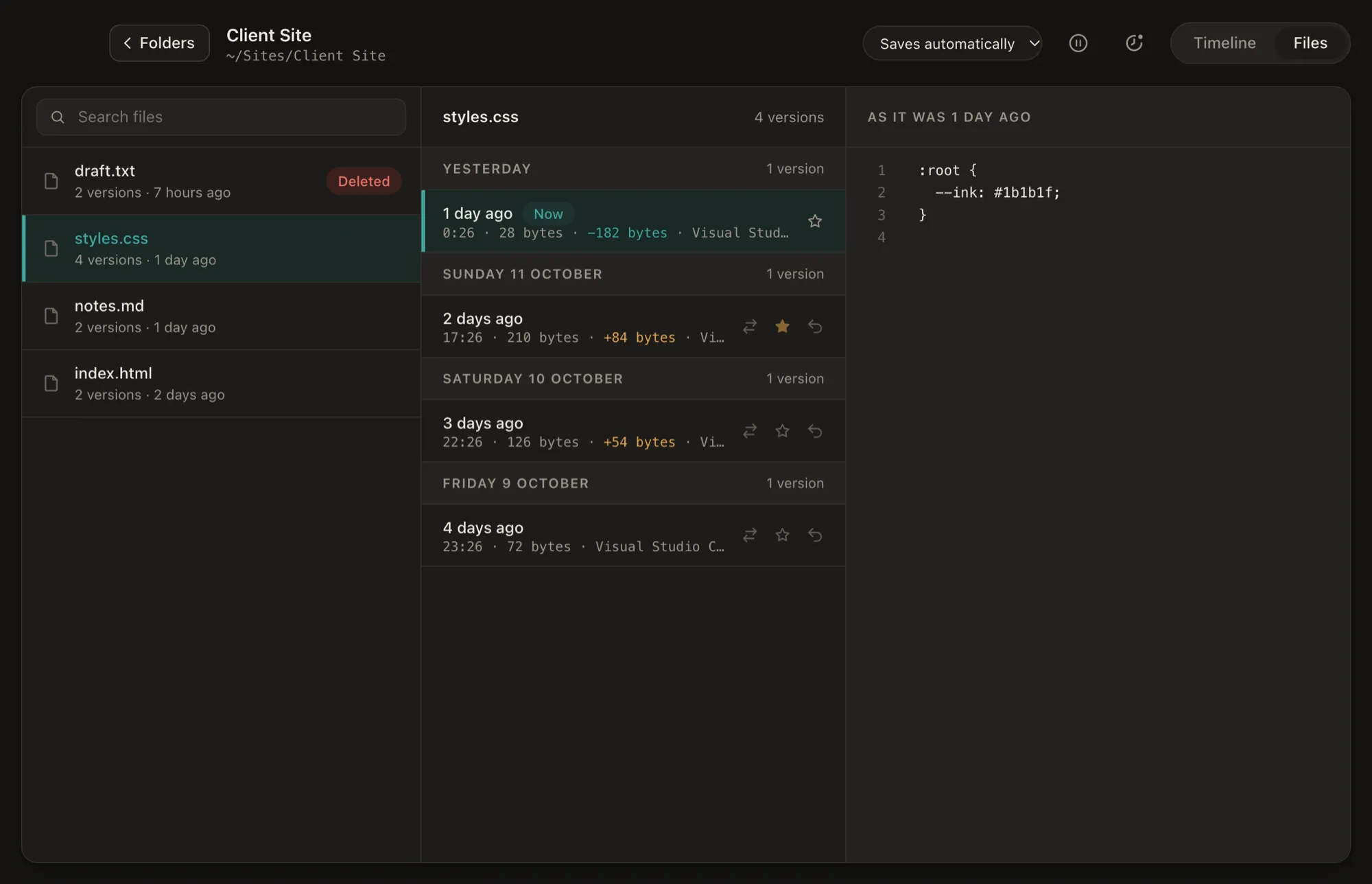 Every version of one file, with its size, the app that saved it and a preview.
Who changed that?
Each version shows which app saved it and how much bigger or smaller the file got. Handy when a file suddenly doubled in size and you want to know what ate your disk.
Named moments from anywhere
Close the window and BackThen keeps recording from the menu bar. Press ⌘⇧B in any app to save a named moment, like “before the client call”, so it’s easy to find later.
Disk space
Files that haven’t changed are stored once, however many moments include them, so space grows with what you change. By default BackThen keeps every moment for 7 days, then one a day for 90 days. Starred moments are kept forever, and you can change all of this in Settings.
What it isn’t
BackThen isn’t a backup to another drive. Its history lives on the same Mac, in ~/.backthen, so keep using Time Machine or another backup as well. It can only bring back versions from after you started protecting a folder.
Getting it
BackThen is a one-time purchase for one computer and runs on Apple silicon and Intel Macs with macOS 11 or later. Your files never leave your Mac; the only network call checks your licence key. Setup steps are on the BackThen page.


