How to show someone a photo without them seeing your whole gallery
You hand over your phone to show one photo, and they start swiping. Built-in ways to lock your phone to one screen on Android and iPhone, and a simpler way.
Someone asks to see the photos from your trip. You open the gallery, find the first one and hand your phone over. A second later they’re swiping: past the trip, into screenshots of chats, a photo of your ID, the picture you took of a bill. Nobody means any harm. A gallery is just made for swiping.
Then a WhatsApp message pops up at the top of the screen while they’re still holding your phone.
Why it happens
Your gallery has everything in it, in one long line. When you open one photo, the photos on either side are a swipe away, and the phone has no idea you only meant to share three of them. Notifications keep coming in too, because as far as the phone is concerned, you’re the one holding it.
What your phone can already do
Both Android and iPhone have a built-in way to keep someone inside one app. These are worth knowing about, though neither stops someone swiping inside the gallery itself.
- Android: app pinning. Turn it on in Settings (usually under Security or Security & privacy, search for “pin”). Then open Recents, tap the app’s icon and choose Pin. The person can’t leave that app until it’s unpinned, which needs your PIN if you set it up that way.
- iPhone: Guided Access. Turn it on in Settings → Accessibility → Guided Access, then triple-click the side button inside an app to start it. The phone stays in that app until you triple-click again and enter your passcode.
- Silence notifications first. Turn on Do Not Disturb (or a Focus on iPhone) before you hand the phone over, so messages and calls don’t pop up.
- Make an album. Put the photos you want to show in their own album and open that, so the photos nearby are at least the right ones.
These help, but it’s a lot to remember while someone is waiting to see your photos. Pinning also keeps them inside the gallery, and the whole gallery is still there to swipe through.
Showing only the photos you pick
That’s why I built Show Only. Select photos in your gallery, tap Share, pick Show Only, and they open full screen in a viewer that swipes between only those photos. Nothing else is there to swipe to.
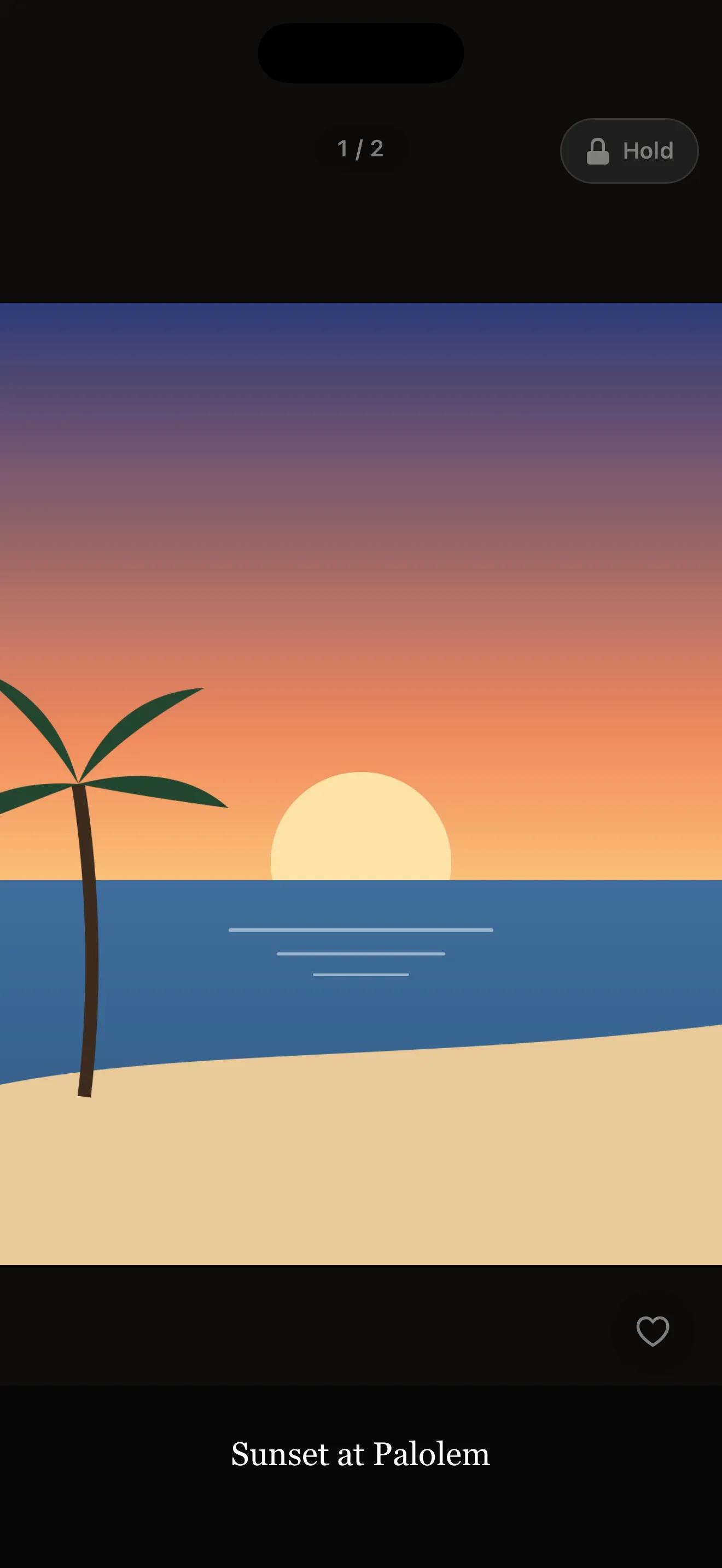 Show Only: only the photos you picked, and a lock only you can open.
On Android, the app pins itself, so Back, Home and Recents stay inside your photos, and while they hold your phone Do Not Disturb hides messages and calls and screenshots are blocked. Both switch back when you finish. On iPhone, Guided Access keeps them inside the viewer, and Show Only shows you how to turn it on. To finish, you hold the lock and confirm with your fingerprint, face or PIN.
You can also blur a number on an ID or a ticket before you show it (the original isn’t changed), and keep the photos you show often as saved sets. Everything stays on your phone: no account, no ads, no analytics.
Show Only is coming soon to Google Play and the App Store. Follow @shiponfriday to hear when it lands.
Showing someone a photo shouldn’t mean showing them your whole phone.


